Visual Guides
Step-by-step visual tutorials for different platforms and devices
Choose Your Platform
Select your device or platform to view the appropriate setup guide:
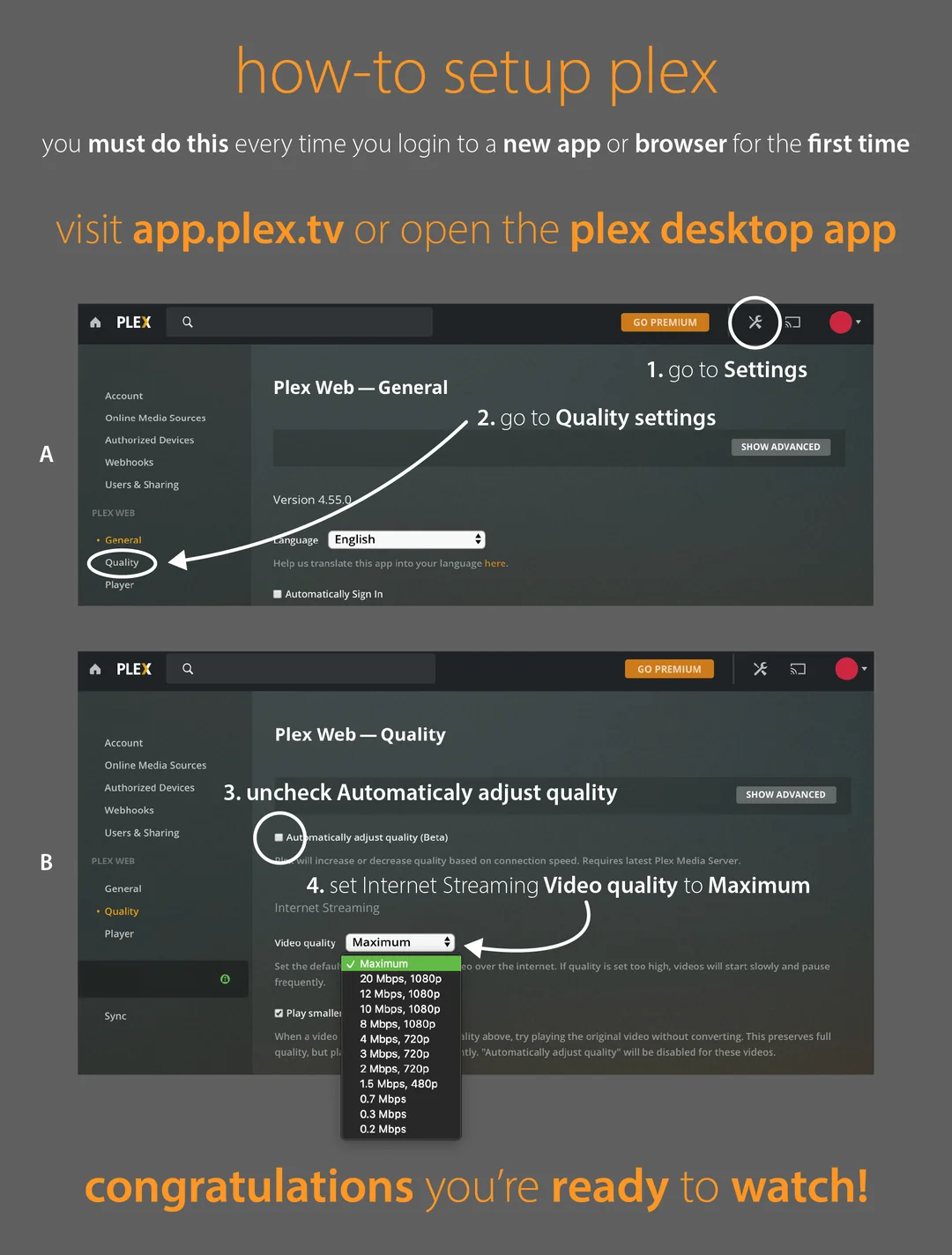
Web Browser Setup
Access Andrew's Media Server directly through your web browser. This is the easiest way to get started.
Sign In
Use your Plex account credentials to sign in to the web interface.
Tips:
- Make sure you've accepted Andrew's server invitation
- Use the same email address that received the invitation
- If you can't sign in, check your email for the invitation
Select Andrew's Server
Once signed in, you'll see Andrew's server in the left sidebar. Click on it to access the content.
What to look for:
- Server name will be "Andrew's Server" or similar
- You'll see various libraries (Movies, TV Shows, etc.)
- Click on any library to browse content
Start Streaming
Click on any movie or TV show to start streaming. The content will play directly in your browser.
Browser Requirements:
- Modern web browser (Chrome, Firefox, Safari, Edge)
- Stable internet connection
- JavaScript enabled
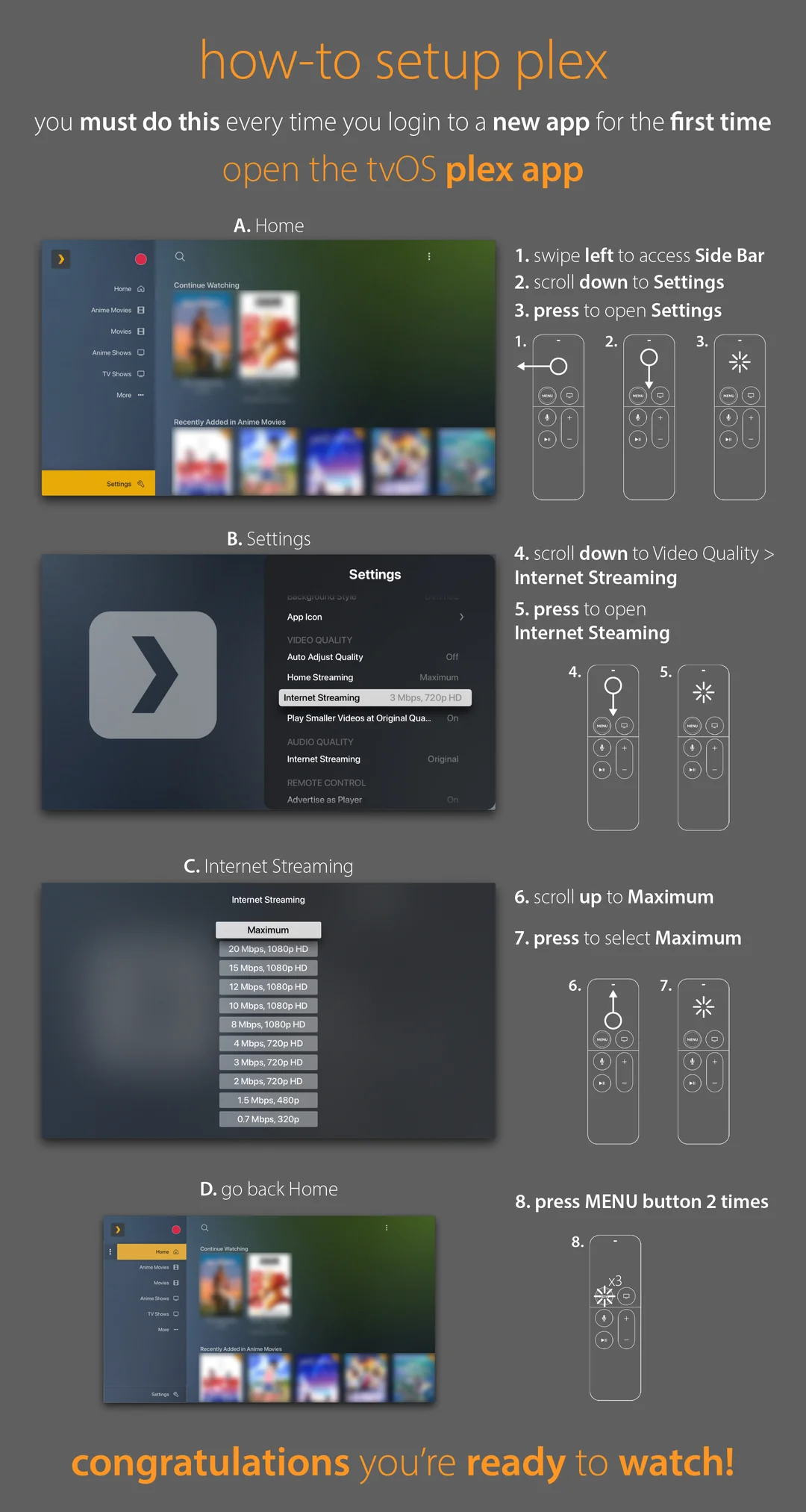
Apple TV Setup
Set up Plex on your Apple TV for the best streaming experience on your television.
Download Plex App
Open the App Store on your Apple TV and search for "Plex". Download and install the official Plex app.
Launch Plex App
Open the Plex app from your Apple TV home screen.
First Launch:
- The app will show a setup screen
- You'll need to sign in with your Plex account
- Make sure you have your Plex credentials ready
Sign In
Use your Apple TV remote to enter your Plex account email and password.
Sign In Tips:
- Use the on-screen keyboard to enter credentials
- Make sure you've accepted Andrew's server invitation
- If you have trouble typing, use the Plex mobile app to sign in
Access Andrew's Server
Once signed in, you'll see Andrew's server in the main interface. Navigate to it using your remote.
Navigation:
- Use the directional pad to navigate
- Press the center button to select
- Browse through different libraries
- Select content to start streaming
Optimize Settings
Access the settings menu to optimize your streaming experience.
Recommended Settings:
- Set video quality to "Maximum"
- Enable Direct Play when possible
- Adjust audio settings for your setup
- Configure subtitles if needed
iOS/Android Setup
Set up Plex on your mobile device for streaming on the go and offline viewing capabilities.
Download Plex App
Download the official Plex app from your device's app store.

Install and Launch
Install the app and launch it from your device's home screen.
First Launch:
- The app will guide you through setup
- You'll need to sign in with your Plex account
- Make sure you have a stable internet connection
Sign In
Enter your Plex account credentials to sign in to the app.
Sign In Options:
- Enter email and password manually
- Use biometric authentication if available
- Sign in with Apple/Google (if supported)
Access Andrew's Server
Once signed in, you'll see Andrew's server in the app. Tap on it to browse content.
Mobile Features:
- Swipe to navigate through content
- Tap to play videos
- Use search to find specific content
- Download content for offline viewing
Configure Offline Sync
Set up offline sync to download content for viewing without an internet connection.
Offline Sync Tips:
- Download content over Wi-Fi to save data
- Choose appropriate quality for your device
- Manage storage space regularly
- Sync content before traveling
Additional Tips
Network Requirements
Ensure you have a stable internet connection with sufficient bandwidth for streaming.
Quality Settings
Adjust video quality based on your internet speed and device capabilities.
Audio Setup
Configure audio settings for the best listening experience on your device.
Subtitles
Enable subtitles if needed and adjust their appearance to your preference.
Common Issues
Can't see Andrew's server?
Make sure you've accepted the server invitation and are signed in with the correct account. Try refreshing the app or signing out and back in.
Video quality is poor?
Check your internet connection and adjust the video quality settings in the app. Set it to "Maximum" for the best experience.
App keeps crashing?
Try closing and reopening the app, or restart your device. Make sure you have the latest version of the Plex app installed.
Need more help?
Check out our Troubleshooting Guide for more detailed solutions to common problems.